
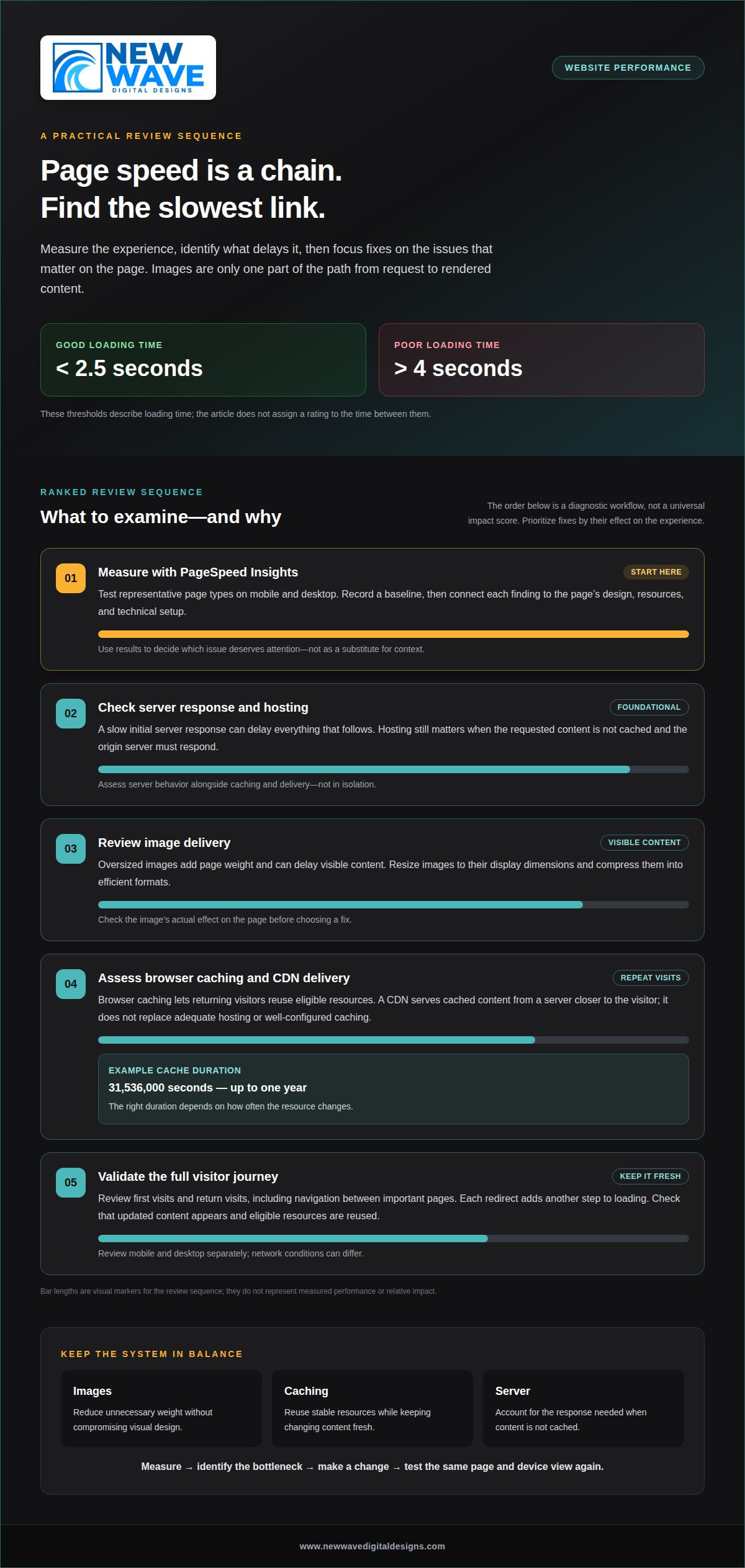
Page speed is shaped by more than image size. To understand how to improve website page speed for SEO, start by measuring how quickly a page’s content appears and how promptly it responds, then address the slowest parts of the experience. A loading time below 2.5 seconds is considered good, while a time above 4 seconds is considered poor.
It’s natural to focus first on oversized images: they can add weight to a page and delay visible content. But polished images alone won’t fix a slow server response or poorly configured caching. Page speed is a ranking factor on desktop and mobile, so improvement starts with examining the full path from a visitor’s request to the rendered page.
This guide explains what page speed measures and how to identify the causes of delay. It covers practical ways to improve it, including image compression and sizing, faster server responses, and browser caching, so you can see where optimization should begin.
Key Takeaways
- Look beyond the first visit: browser caching can reduce repeat loading work, while a content delivery network serves cached content from a server closer to the visitor.
- Use PageSpeed Insights to identify which pages and resources deserve attention, then prioritize fixes by their effect on the experience.
- Have images resized to their display dimensions and compressed into efficient formats to reduce their weight without compromising the visual design.
- Assess server response time as part of performance work; a slow initial response can delay everything that follows.
- Treat optimization as a connected process: image delivery, caching, and server performance each contribute to a smoother page experience.
Browser caching and navigation performance
Browser caching stores reusable resources, while a CDN delivers cached content from a server closer to visitors. Hosting influences how quickly the server responds. Together, these factors shape loading speed and SEO on desktop and mobile.
-
Have a professional enable browser caching
Arrange professional access to the site’s hosting configuration, content management system, or CDN settings. The professional identifies reusable resources, then configures browser caching so returning visitors don’t repeatedly download unchanged files. An example setting allows a resource to be cached for 31,536,000 seconds, up to one year. The right duration depends on how often that resource changes.
-
Assess caching, CDN, and hosting effects
Review caching, CDN delivery, and hosting response as connected parts of page performance. A CDN serves cached site content from a server closer to the visitor. Hosting still matters when requested content is not cached, because the origin server must respond. A CDN does not replace adequate hosting or well-configured caching.
- Separate static and changing resources. Identify which files stay stable and which change regularly. Images, stylesheets, and scripts may be reused between visits, while page content can change more often. Cache policies should reflect those differences. If an updated file retains the same cached identity, visitors may see an older version. Excluding every file from caching, however, removes the benefit on repeat visits.
- Check the complete visitor journey. Review first visits and return visits, including navigation between important pages. A returning visitor may already have reusable files stored, but each page can still request new resources. Check whether pages share assets, cached content is served correctly, and redirects add unnecessary steps. Each redirect adds another step to loading.
- Validate the configuration after changes. Test representative pages after changing cache rules or CDN settings. Confirm that updated content appears correctly and repeat navigation reuses eligible resources. Review mobile and desktop separately because network conditions can differ. Compare loading behavior with the original performance assessment instead of assuming a setting improved every page.
- Keep cache rules aligned with site updates. Include caching in ongoing maintenance when designs, files, or page content change. A careful setup balances reuse with freshness: stable resources remain available to returning visitors, while updated files need a clear path to display. Regular review helps prevent stale content without losing useful caching across the site.
Professional page performance checks with PageSpeed Insights
Use Google PageSpeed Insights to locate performance issues before choosing fixes. A professional can interpret its findings alongside the page’s design, content, and technical setup.
- Choose representative pages for assessment. Test important page types in Google PageSpeed Insights, not just the homepage. Product, service, and landing pages can load different resources and reveal different bottlenecks. Include pages that support key visitor tasks, such as exploring an offering or making an inquiry. This gives you a more useful assessment than a snapshot of one page.
- Review mobile and desktop results separately. Assess both views because layouts and loading behavior can differ across devices. A large desktop banner, for example, may use a different image on mobile. The report helps show which experience needs attention first. Compare the same page across device views before deciding whether a single change can address both.
- Translate findings into a prioritized plan. PageSpeed Insights shows performance information and opportunities for improvement, but each suggestion needs context. Connect a flagged resource with its effect on the actual page. A slow-loading font, for instance, may delay visible text, while an oversized image may hold up prominent content. Prioritize changes that address visible delays without weakening the page’s design or function.
- Match each issue to its likely cause. Check whether a recommendation points to images, scripts, stylesheets, or server behavior. Google PageSpeed Insights can surface these areas, but a single result does not explain every technical dependency. Examine how the page is built and how its resources interact. This shows how to improve website page speed for SEO by addressing causes, not just isolated warnings.
- Record a baseline before changes. Save the tested page, device view, findings, and date before optimization begins. After each change, assess the same page and view again in PageSpeed Insights. Keep a concise record of what changed, such as image delivery or script behavior. This gives you a practical comparison and helps distinguish meaningful improvement from a different test result.
- Monitor performance as the site evolves. Schedule repeat assessments after significant design, content, or platform updates. Review important page types, then compare findings with the baseline and note newly reported issues. A new feature can add resources, while a redesign can alter loading order. These ongoing comparisons help guide decisions about how to improve website page speed for SEO as the site changes. Include these checks in website maintenance so performance remains part of ongoing site care.
Professional image compression and sizing
Ask a professional to review image dimensions, file formats, and visual quality together. The goal is lighter image files that still fit the design.
-
Have a professional assess image sizing
Provide access to the site’s media library and original image files. The professional can compare each image’s pixel dimensions with its displayed size across page layouts. A large desktop banner may need a differently sized mobile version. Resizing an image can reduce its file size by 50% in the example provided, while avoiding unnecessary dimensions keeps delivery aligned with its actual use.
-
Have a professional compress images
Ask the professional to compress priority images and compare the result with each original. WebP images can be up to three times smaller than JPEG and PNG images. The best format depends on the image and how it appears on the page. Review fine details, edges, and color before replacing the original, since excessive compression can make a carefully designed visual look degraded.
- Prioritize images that appear early. Have the professional identify the image that visitors see first, such as a prominent page banner or product image. A page image example of almost 2 megabytes takes 4.7 seconds to download. Reducing the weight of a prominent image can help it appear sooner, while compressing less visible images can be considered in the same pass.
- Match dimensions to each placement. Create image versions suited to the layouts where they appear. A square product image and a wide homepage banner have different proportions and roles. Reusing one oversized original for every placement can send unnecessary image data. Preserve the intended crop and keep key details visible on desktop and mobile.
- Review quality at the displayed size. Compare optimized files in the actual page, not only as downloads. Check that text within a graphic remains legible, product details stay clear, and color transitions look natural. For example, a compressed product photograph should retain the texture and edges visitors need to understand the item. Choose a file that balances visual quality with smaller size.
- Confirm the optimized files are used. Verify that the page loads the new versions instead of retaining older, heavier files. Review image delivery on representative desktop and mobile pages, including repeated placements. Record the changed images and their formats so future content updates follow the same approach. This helps prevent new uploads from adding unnecessary image weight.
What Is Page Speed?
Page speed describes how quickly a page loads and responds to visitors. Professionals assess its stages and metrics, then prioritize changes that support a usable experience and SEO.
- Map the loading stages. Examine when the browser begins receiving a page, displays content, and responds to interaction. Time to First Byte measures how long a page takes to start loading. First Contentful Paint measures how long it takes for the first page element to appear. These moments reveal different delays, so one overall load time cannot explain every problem.
- Interpret metrics in context. First Input Delay measures how long a site takes to respond to user input. A page can display content while still feeling sluggish if interactions lag. Google considers website loading times below 2.5 seconds good and times above 4 seconds poor. Treat these figures as reference points, then identify which stage is slow.
- Clarify the costs before work begins. Tool and CDN charges vary by provider and features. Professional service pricing depends on page count, platform, and technical scope, and is provided after a quote request. The work can differ depending on whether the main issue involves fonts, CSS, JavaScript, images, or server behavior.
- Compare real-user data with lab tests. Use lab tests to examine a controlled page load, then compare the findings with real-user data where available. Lab results help isolate a resource or loading stage; field data reflects visitors’ actual devices and connections. If both identify the same delay, it may deserve priority over a finding seen only in one test.
- Optimize resources as a connected system. Professionals can resize and compress images, review CSS and JavaScript loading, and reduce unnecessary work before content appears. They can preload only the 2-3 most important fonts, with each font file under 100 kilobytes. This helps prioritize essential typography without making every font compete for early loading.
- Test changes for unintended effects. Lazy loading can defer off-screen content, but applying it to an image needed immediately may delay its appearance. Removing scripts without checking their role can break interactions or page features. Have the professional test affected pages after each change, including menus, forms, and visible content, then compare results with the original assessment.
Professional server response time improvements
Server response time sets the pace before a page’s content can appear. A professional investigates the work happening behind each request, rather than treating every delay as an image problem.
- Measure the initial response. Assess Time to First Byte (TTFB), which measures how long a page takes to start loading. Compare representative pages, such as a homepage and a product page, to see whether delays affect one template or the site more broadly. This establishes where to begin investigating.
- Trace the request through the site. Ask the professional to review what happens between a visitor’s request and the server’s response. A page may rely on database queries, application code, or external services before it can return content. The review should connect slow responses to specific processes instead of assuming the hosting environment is the only cause.
- Inspect hosting and server configuration. Have the professional examine whether the current hosting setup can handle the site’s needs and how its configuration affects requests. Hosting that struggles to process page requests can delay every resource that follows. Review server logs and configuration alongside page tests, then identify changes that address the observed bottleneck.
- Review application and database work. Ask for an assessment of the code and data requests involved in serving important pages. Repeated or inefficient queries can add processing before a page begins loading. For example, a product page may request information from several sources before displaying its main content. A professional can identify unnecessary work and refine the request path.
- Check caching before escalating infrastructure. Assess whether repeat requests can use appropriate cached content. Browser and CDN caching can reduce the work required for eligible resources, while the origin server remains responsible for uncached requests. Compare cached and uncached behavior to distinguish delivery delays from slow page generation. This makes any hosting changes more targeted.
- Retest after each server-side change. Ask the professional to compare TTFB and page behavior before and after adjustments. Test the same representative pages under consistent conditions, then confirm that forms, product details, and other essential functions still work. A faster initial response matters only if the page continues to deliver the content and interactions visitors need.
- Make server response part of ongoing care. Include response checks after meaningful platform, plugin, or application changes. A new feature can alter database activity or add external requests, changing how a page is generated. Request a professional server performance review to identify where technical investigation can support a faster site.
New Wave Digital Designs
New Wave Digital Designs can connect page-speed priorities with your website’s structure and ongoing care. If image delivery, caching, or server response needs attention, Website Support includes maintenance, hosting, and security. For a site being built or reshaped, Shopify, WordPress, and SquareSpace website design can bring performance considerations into the project from the outset.
The right starting point depends on your platform, current performance issues, and the changes your site needs. Share the pages or findings you want addressed so the work can focus on your site’s priorities.
Contact New Wave Digital Designs to discuss your website’s page-speed needs.
Build performance into your website’s next chapter
Your website’s performance should evolve alongside its content, design, and visitor expectations. Treat meaningful updates as opportunities to preserve a clear, responsive experience, rather than relying on a one-time technical cleanup. Ongoing attention helps prevent small additions from quietly weighing down a carefully built site.
A practical plan for how to improve website page speed for SEO connects performance decisions to each page’s purpose. The right priorities support both the experience visitors need and the goals your website serves. Keep that balance in view as the site grows. Recording changes can also make it easier to spot what needs attention next.
If technical diagnosis or implementation is holding up progress, professional support can help shape next steps around your platform and priorities. Contact New Wave Digital Designs to discuss your website. Deliberate decisions build a stronger foundation, and your next step can begin with a focused conversation.
Frequently Asked Questions
What is website performance?
Website performance describes how well a site loads, responds, and supports visitors’ tasks. Speed is one part of that experience, but a fast page can still frustrate visitors if its navigation or forms malfunction. For example, a product search should show useful results and let visitors open the right item. Assess both technical behavior and whether key page interactions work as intended.
What’s the best professional strategy to improve website speed?
The best strategy is to diagnose actual bottlenecks, then address them in priority order. Assess representative pages, connect each issue to its cause, and plan changes around the visitor experience. For example, a slow checkout deserves attention for different reasons than a slow editorial page. Testing after each meaningful change shows whether it improved the intended experience without disrupting other site functions.
What Core Web Vitals thresholds should a website meet in 2026?
A website should aim for Google’s “good” assessment across Largest Contentful Paint (LCP), Interaction to Next Paint (INP), and Cumulative Layout Shift (CLS). These metrics represent loading, interaction responsiveness, and visual stability. Review each metric separately rather than relying on one overall score. The thresholds are metric-specific, so a professional should assess current Google criteria for all three when evaluating a site in 2026.
How can a professional improve Largest Contentful Paint (LCP) on a website?
Identify the largest visible content area, then trace what delays its appearance. On a page with a prominent heading and product details, examine server processing, render-blocking resources, and the order in which content becomes available. Ensure the main content is not hidden behind scripts or late-loading design elements, then retest the same page after adjustments.
How can a professional reduce Interaction to Next Paint (INP) and JavaScript execution time?
Find interactions that feel delayed, such as opening a menu or filtering products, and inspect the scripts involved. Reduce unnecessary JavaScript work, divide lengthy tasks, or delay nonessential scripts until needed. Third-party tools can also compete for browser attention. Test real interactions after changes to confirm that faster execution has not removed useful features or affected forms and navigation.
How can a professional improve Cumulative Layout Shift (CLS) and prevent layout shifts?
Locate elements that move unexpectedly as a page loads, then adjust the layout to reserve their space. Defining image dimensions, for example, helps prevent surrounding text from jumping when an image appears. Review late-loading banners, embedded content, and font changes as well. Testing pages with different content and screen sizes can reveal shifts that a single layout might miss.