
A secure WordPress site is maintained, not simply installed. WordPress website security best practices in 2026 center on keeping software updated, using HTTPS, limiting account access, and maintaining tested backups, including an off-site copy. The 3-2-1 backup rule offers a practical foundation: keep three copies of your data, on two types of media, with one copy stored off-site.
It’s reasonable to ask whether WordPress itself is secure. WordPress can be maintained securely, but its software alone can’t protect a website. Outdated plugins, weak passwords, and neglected maintenance can create openings. Security is an ongoing routine, not a one-time setting.
This guide explains how to build that routine, from updates and secure connections to access controls, backups, and regular maintenance. You’ll learn which steps help reduce risk and how to make them manageable, giving your website a considered foundation for protection and recovery.
Key Takeaways
- WordPress can be secure when maintenance is consistent; build in off-site backups and test that restoration works.
- Keep WordPress core, themes, and plugins updated, with security fixes prioritized and unused extensions removed.
- Use HTTPS across the site and address certificate renewals and mixed-content issues to keep connections protected.
- Limit administrator access, use unique strong passwords, and enable two-factor authentication to strengthen account security.
- Make security reviews, malware scans, and update checks part of a recurring maintenance routine.
1. Is WordPress secure?
WordPress can support a secure website, but security depends on how it is maintained. The WordPress website security best practices in 2026 connect prevention with recovery: keep software current, control access, scan for threats, and preserve recoverable copies. A current installation can still be exposed by an outdated plugin, a compromised password, or a backup that cannot be restored.
Start with automated daily backups of the database and site files. Store at least one copy off-site, separately from the hosting server. If a hosting account is compromised or files are damaged, a separate backup offers another recovery path. Limit backup access to accounts that need it, and use immutable copies where possible to reduce the risk of alteration or deletion.
The 3-2-1 rule offers a clear structure: keep three copies of data, on two types of media, with one copy stored off-site. For example, a WordPress site might use its live hosting copy, a separate local backup, and a cloud-stored copy. The locations matter. Three copies in the same compromised hosting account may fail together.
Automation alone doesn’t prove a backup can be restored. Verify automated backups weekly, then test a restoration monthly in a safe staging environment. Confirm that the database, images, and key pages work before relying on the backup. A successful restore test shows that stored files can serve as a recovery option. Record the test date and any issues so missed or failed runs are visible.
U.S. privacy and breach-notification rules may depend on the information a WordPress website collects, where affected individuals are located, and the business’s sector. State breach-notification laws and sector-specific requirements may apply, with obligations varying according to those factors.
Pair backups with regular security scans. Run malware scans at least weekly, or daily for sites handling sensitive data. Review alerts alongside unexpected file changes, unfamiliar administrator accounts, and unusual login attempts. Remove unused plugins and themes rather than leaving inactive code on the site.
If a WordPress website is hacked or infected, first limit further access: contact the host, restrict affected accounts, and preserve available logs. Then identify the entry point, remove malicious code, update compromised credentials, and scan the site before restoring a known-clean backup. Restoring without addressing the cause can leave the same weakness in place.
Security also includes the config file and account settings. Keep administrator access limited, use unique passwords, and avoid exposing sensitive files. Applying WordPress website security best practices in 2026 means making these protections part of a repeatable routine. A tested recovery plan and consistent scans strengthen the site beyond any single plugin or setting.
2. How often should I update WordPress plugins?
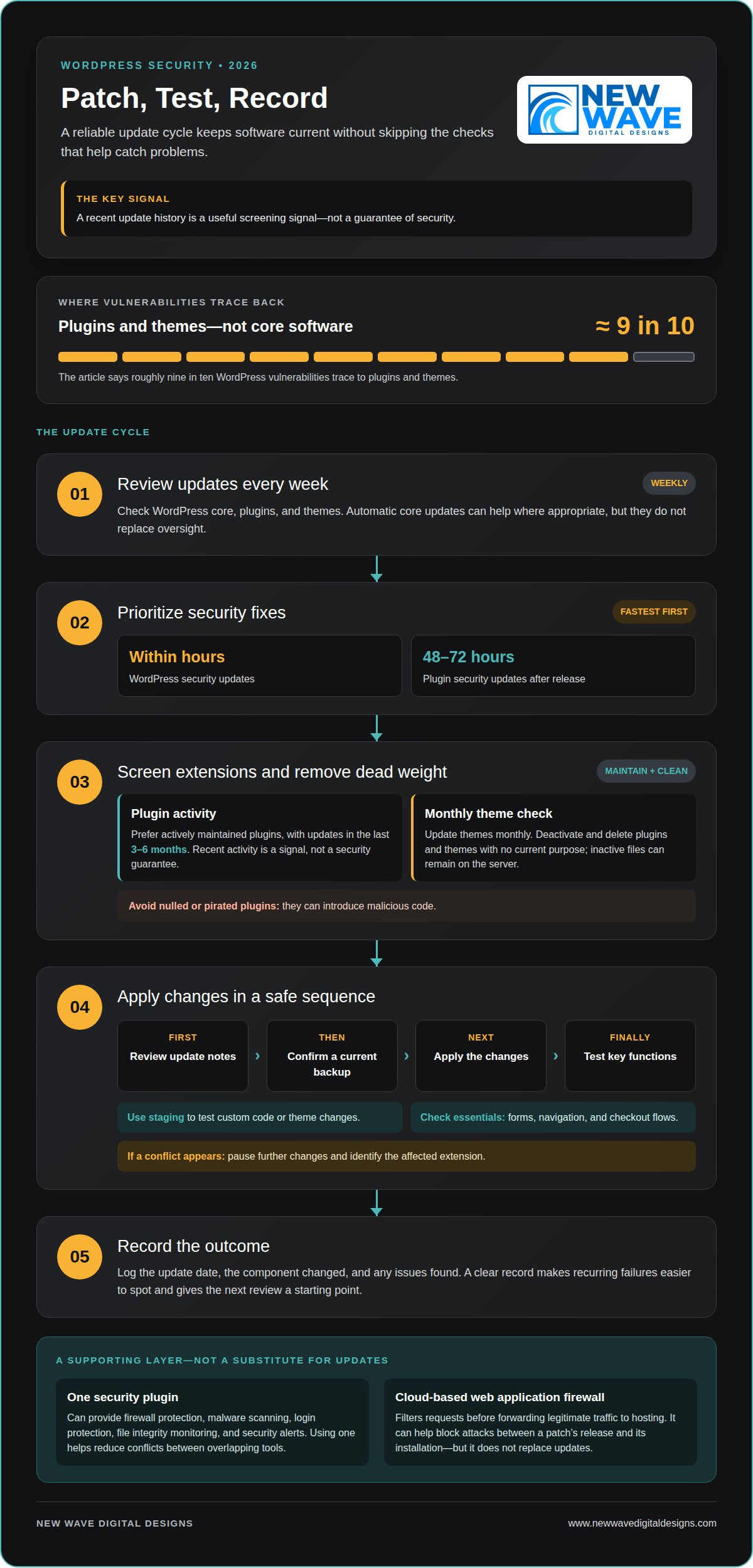
Set a weekly update review for WordPress core, plugins, and themes. Enable automatic core updates where appropriate, but don’t treat automation as a substitute for oversight. Security fixes need faster attention: apply WordPress security updates within hours, and prioritize plugin security updates within 48-72 hours of release. A short review cycle helps catch important patches before they sit unnoticed.
Plugins and themes deserve particular care. Roughly nine in ten WordPress vulnerabilities trace to plugins and themes rather than core software. Extensions often have different development resources and release schedules. Choose plugins that are actively maintained, with updates in the last 3-6 months. That recent activity is a useful screening signal, not a guarantee of security. Avoid nulled or pirated plugins, which can introduce malicious code into a site.
Update themes monthly and remove those you no longer use. Apply the same approach to plugins: deactivate and delete extensions with no current purpose. An inactive plugin can still leave files on the server, so deactivation alone doesn’t complete the cleanup. Test changes to custom code or themes in a staging environment. After each update, check essential forms, navigation, and checkout flows. If a conflict appears, pause further changes and identify the affected extension.
Follow a deliberate sequence: review the update notes, confirm you have a current backup, apply the changes, then test key site functions. Prioritize security updates over routine cosmetic changes. Record the update date, the component changed, and any issues found. This makes recurring failures easier to spot and gives the next maintenance review a clear starting point.
A security plugin can add firewall protection, malware scanning, login protection, file integrity monitoring, and security alerts. Use one security plugin to reduce the risk of conflicts between overlapping tools. A cloud-based web application firewall works differently: it filters requests before forwarding legitimate traffic to your hosting. A firewall can help block attacks between a patch’s release and its installation, but it doesn’t replace updates.
When updates require careful handling, WordPress hosting and security can support a more structured maintenance approach. The aim is a dependable rhythm: patch promptly, test changes, and remove extensions that no longer belong on the site.
3. HTTPS and SSL certificates
Use HTTPS on every WordPress page, not just login or checkout screens. HTTPS encrypts traffic between a visitor’s browser and your website. An SSL certificate enables the secure connection, though modern connections use TLS. Attackers may target unencrypted traffic, especially when visitors submit account details or forms. HTTPS doesn’t stop brute-force attacks against login pages, so pair it with separate access controls.
Configure the certificate at the hosting level, then redirect HTTP requests to HTTPS. Test the homepage, login page, forms, and any payment journey. Check images, scripts, and stylesheets as well. If a resource still loads over HTTP, browsers may report mixed content even when the main page uses HTTPS. Replace outdated HTTP references so every element loads through the secure connection.
For secure hosting, use PHP 8.3 or higher, HTTPS sitewide, and a web application firewall. Malware scanning and removal, server-level DDoS protection, and automated backups also support a stronger hosting setup. On shared hosting, account isolation helps separate sites. Set WordPress files to permission 644 and directories to 755. Restrict wp-config.php to permission 600 or 640, and prevent PHP files from executing in upload folders.
Certificate renewal needs a place in the maintenance routine. Let’s Encrypt certificates expire every 90 days, so automatic renewal should be monitored rather than assumed. Confirm that renewal succeeds before expiry and that browsers display a secure connection afterward. If a certificate expires, visitors may see a warning and leave before reaching the site.
Once HTTPS works across the site, an HTTP Strict Transport Security header can tell browsers to use secure connections. An example sets max-age=31536000 seconds and includes subdomains. Apply that setting only when every covered subdomain supports HTTPS. Otherwise, the browser may keep trying a secure connection to a subdomain that hasn’t been configured for it.
Review protocol settings as well. TLS 1.0 and TLS 1.1 are outdated versions with known vulnerabilities. Ask hosting support to ensure the server uses current, secure TLS settings. Google has used HTTPS as a search ranking signal since 2014, but ranking is only one reason to secure every page. A firewall can filter malicious requests; it cannot repair an expired certificate or an HTTP image.
Include a concise HTTPS review in each monthly security check: test redirects, certificate status, mixed content, and subdomains. This makes configuration gaps easier to spot before they disrupt visitor access or expose traffic.
4. Area 2: Access Control – Who’s Getting In?
Brute-force attacks use repeated password guesses against WordPress login pages. Limit login attempts, add two-factor authentication, and rate-limit important endpoints. CAPTCHA or other bot protection can reduce automated spam and attack traffic. These controls complement each other: attempt limits slow repeated guesses, while a second factor makes a stolen password less useful.
Use a long, unique password for every WordPress administrator account. A password manager can create and store distinct credentials, reducing password reuse across sites. Avoid the username “admin,” which attack scripts commonly guess first. If an administrator leaves, promptly remove or change that account’s access. Review user accounts and assigned roles during routine security checks.
Two-factor authentication requires a second verification factor after the password. Prefer an authenticator app over SMS because text messages can be intercepted. Enable this protection for every administrator, and keep recovery methods controlled and current. For a team, single sign-on through Google Workspace or Okta can centralize authentication and access control.
Give each WordPress user only the permissions needed for their work. An editor who publishes articles usually doesn’t need administrator access to install plugins or change server settings. Reserve administrator roles for people who manage those functions. Fewer privileged accounts mean fewer accounts that could change site configuration if compromised.
Login monitoring helps you assess access controls. Review security alerts and logs for repeated failed attempts, unfamiliar account names, or sign-ins at unexpected times. A sudden burst of attempts against one username may signal automated guessing. Set rate limits on login and other important endpoints, then use CAPTCHA when forms attract automated spam.
XML-RPC deserves specific attention. Its system.multicall method can let attackers test hundreds of passwords in one HTTP request. Disable XML-RPC if no site feature depends on it. Before changing the setting, identify integrations that use it, such as a connected publishing tool. This avoids disrupting a legitimate connection while closing an unused route.
Ask the hosting provider about server-level protections, such as request filtering and access logs. A web application firewall can inspect traffic before it reaches WordPress, while login limits and two-factor authentication protect accounts at the application level. Keep a known-clean backup available, but don’t restore it during an active attack. First block suspicious access, secure administrator accounts, and identify the entry point. Restore only after addressing the cause.
5. Security maintenance routines
A reliable WordPress security routine needs a calendar, not guesswork. Treat WordPress website security best practices 2026 as an ongoing maintenance framework, not a one-time setup. Review site security at least monthly, then repeat the review after major updates or plugin installations. These checkpoints help surface new vulnerabilities before they become overlooked gaps. Record the review date, changes made, and issues found. A simple log can show whether a recurring fault follows a specific plugin or update.
Schedule malware scans at least weekly, and daily for sites handling sensitive data. Review alerts for unfamiliar files, suspicious administrator accounts, and unexpected changes. If a scan flags a file, compare it with a clean version before removing it. That step helps distinguish malicious code from legitimate customizations. Keep scan results with the maintenance log, so repeated warnings across WordPress sites are easier to trace and assess.
Use a rotating backup schedule that preserves several recovery points. One recommended pattern keeps 7 daily backups, 4 weekly backups, and 3 monthly backups. Store copies off-site and restrict access to the people responsible for recovery. A compromised hosting account can put locally stored copies at risk. Separate storage gives the site another recovery path if an attacker reaches the server.
After installing a plugin or theme, review its permissions and activity. Remove extensions the site no longer needs, and note why each active tool is essential. Test changes to custom themes or code in staging before applying them live. Then review forms, navigation, and other important functions. A brief test can reveal a conflict before visitors encounter it.
Keep the maintenance log focused on actions that guide decisions. Record software versions, scan findings, backup results, and unresolved warnings. If an update addresses a known exploit, prioritize it rather than waiting for the next routine review. When an alert appears, assign an owner and document the response. Clear responsibility reduces the chance of a critical notice sitting unread.
Prepare a response sequence before a site is compromised. Identify who can suspend affected accounts, contact the hosting provider, and access clean backups. Preserve relevant logs, isolate suspicious access, and investigate the likely entry point before restoring the site. A restore without fixing the exploited weakness can return the same problem to production. WordPress website security best practices 2026 are most useful when they guide actions before, during, and after an incident.
For a consistent schedule, get WordPress maintenance support to help organize security reviews, scans, and updates into a clear routine.
New Wave Digital Designs: WordPress Website Design
New Wave Digital Designs can help when a WordPress site needs a thoughtful design or a clearer plan for ongoing care. Its WordPress Website Design service brings structure and purpose to a new build or redesign, while Website Maintenance and Hosting and Security support the practical work of managing a site.
Consider this next step if updates, access controls, backups, and security checks are difficult to coordinate alongside daily business. A considered approach can connect a site’s design with its maintenance needs instead of treating each as a separate task. New Wave Digital Designs also designs Shopify and SquareSpace websites for businesses using those platforms.
Contact New Wave Digital Designs to discuss your WordPress website needs.
Build a security routine that can evolve
Website security works best as an ongoing part of site ownership, not a project that ends after setup. Use WordPress website security best practices for 2026 as a framework, then shape the routine around how your site changes. A new feature, team member, or integration can alter what needs attention, so let maintenance evolve alongside the website.
Choose a practical next step: identify which security tasks are difficult to manage consistently, then decide whether design, hosting, or maintenance support would help. A well-planned site connects its technical foundation with the needs of the business it represents, making future improvements more intentional and easier to manage.
Plan your next WordPress step with New Wave Digital Designs. A thoughtful approach can help your website keep pace with your goals.
Frequently Asked Questions
Is WordPress secure?
Yes, WordPress can be operated securely, but the platform alone can’t protect every site. Security also depends on installed extensions, account settings, hosting, and regular upkeep. WordPress code has been tested and retested by thousands of contributors over two decades. Assess both the software and how your particular site is configured, maintained, and accessed.
Area 2: Access Control: Who’s Getting In?
Access control determines who and what can enter your WordPress dashboard, and what they can change. Review administrator accounts when team roles change, and remove access that’s no longer needed. For example, a contributor who only writes posts shouldn’t be able to alter settings or install extensions. Limiting permissions reduces unnecessary privileges and makes unfamiliar account activity easier to recognize.
How do I know if my WordPress site has been hacked?
Look for unexpected changes, such as unfamiliar administrator accounts, altered page content, redirects you didn’t configure, or files that appeared without a planned update. Visitors may report browser warnings or pages behaving differently. One sign alone doesn’t prove an intrusion, so compare changes with recent work and review available security logs. If suspicious activity appears, preserve relevant evidence before making changes.
How often should I update WordPress plugins?
Review plugin updates weekly, but don’t leave a security fix waiting for that routine check. Apply security-related plugin updates within 48-72 hours of release, and assess compatibility with your site’s current setup. A plugin with no recent maintenance may deserve closer scrutiny before you rely on it. Check whether the feature is still needed, especially after a redesign or workflow change.
What is the most common way WordPress sites get hacked?
Plugins and themes are a major risk area: roughly nine in ten WordPress vulnerabilities trace to them rather than core software. An outdated or vulnerable extension can create an opening, especially if it remains installed after you stop using it. Reduce exposure by choosing actively maintained extensions, removing unused ones, and prioritizing security updates. No single measure prevents every possible attack.
What are the latest WordPress security best practices for 2026?
Build a layered routine rather than relying on one security tool. Keep core software and extensions current, use HTTPS, limit administrator permissions, and protect accounts with two-factor authentication. Maintain off-site backups and confirm you can restore them. Add regular malware scans and security reviews, especially after significant site changes. These practices address different risks, so combining them creates a more complete protection plan.
How should WordPress core, themes, and plugins be updated safely?
Start with a current backup, review the update notes, and apply changes in a staging environment when custom code or themes are involved. Test important site functions afterward, such as forms, navigation, and checkout. If an update causes a problem, pause further changes and identify the affected component. Briefly record what changed and any issues found.
What is the best way to secure WordPress admin accounts with MFA and strong passwords?
Give each administrator a unique, long password and enable two-factor authentication. Prefer an authenticator app to SMS for the second factor because SMS can be intercepted. Avoid the username “admin,” and limit administrator privileges to people who need them. For a team, centralized sign-in through an identity provider can make access easier to manage when responsibilities change.